Managing Relationships
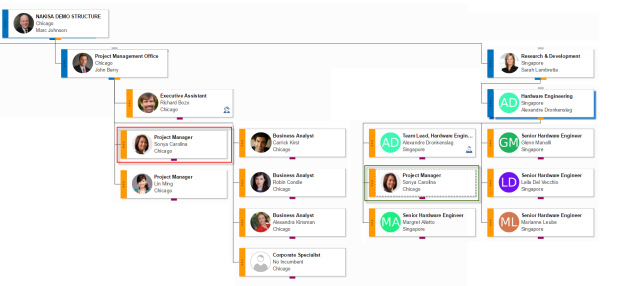
With new and existing nodes in your scenarios, you can indicate that node has a non-standard reporting relationship to other nodes in the scenario. For example, in the following image, the project manager Sonya Carolina reports to her company's Project Management Office (as illustrated in the red square) but her day-to-day tasks and work comes from the Hardware Engineering group, where she manages new hardware projects (as illustrated by the green box). Sonya's standard relationship is to the PMO office, but she has a dotted line relationship to the Hardware Engineering department.
To create a dotted or double-dotted relationship between nodes:
- Click the Node menu of the node that will be reporting to another node and select Manage Relationship
 .
. - Enter some letters or numbers of the Name or ID that the selected node will report TO in the Dotted Relationship or Double-Dotted Relationship field.
- Click Submit.
Note: Dragging and dropping a dotted or double-dotted relationship in a scenario moves that relationship where you drop it. CTRL-dragging and dropping a dotted or double-dotted relationship clones that relationship and adds the new clone where you drop it.

|
Classic Nakisa HR Suite 2022.R2-SP1 © 2023
|
Nakisa Inc. All rights reserved worldwide. |