Printing Your Chart
Classic Nakisa HR Suite offers you the ability to configure your org chart then print it directly from within the application.
To print your chart:
- Open and expand your org chart as appropriate.
- Click Print Org Chart
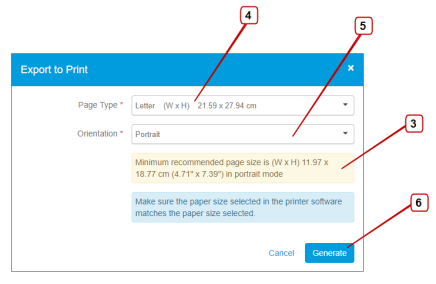
 . The Print dialog opens.
 - Read the minimum recommended page size in the yellow box below the print selections.
- Select a Page Type that accommodates the minimum recommended page size.
- Select the Orientation you want to print the chart.
- Click Generate.
- Select the printer you want to use and set any parameters, such as number of copies and pages.
- Verify the structure is complete and viewable, then click Print.
This opens the print dialog for your computer.
Important: Ensure you select a paper size that matches the paper size you selected in step 4.
Note: For printing to work successfully, you will need to turn off the pop-up blocker for the URL you use to access Classic Nakisa HR Suite.
Warning: When using Microsoft Edge, the Analytics color coding (the 3 bars at the top of the screen, and the colored boxes on the nodes) will not appear in printed charts.

|
Classic Nakisa HR Suite 2022.R2-SP1 © 2023
|
Nakisa Inc. All rights reserved worldwide. |