File Storage
The File Storage is an area where you can upload files (XLSB and ZIP) to store information. For example, you can import disclosure reports that cover the period where the lease is not in Nakisa Lease Accounting Suite.
Note that the maximum file size that can be uploaded is 500 MB.
Tip: XLSB files are binary Excel files that open more quickly and take up less space. To convert Excel files to XLSB, simply click File > Save As, and select Excel Binary Workbook (*.xlsb).
To import a file:
- Click Main Menu
 > Import/Export Information > File Storage.
 - Click
 . The Upload a File pop-up opens.
 - Enter a Name for the file.
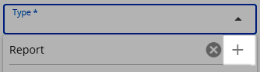
- Select a file Type. If the value that you want to use does not already exist, enter the value and click the add button:
- If required, you can select From Date and To Date to help identify the period covered by the uploaded file.
- You can enter a Description, and it will appear in a tooltip
 next to the Name in the table.
 - Click
 and select the file.
 - Click Upload.
To manage imported files:
- Click
 at the top-left of the page to delete the selected files (up to five files at a time). Note that Lease Administrators can delete any file, but Reporting users can only delete the files that they have uploaded themselves.
 - Click
 at the top-left of the page to refresh the page.
 - Click
 at the top-left of the page to download the selected files (up to five files at a time).
 - In the Actions column of a certain uploaded file, click
 to download the file.
 - Click
 at the top-right of the page to customize the columns displayed on the page.

|
Nakisa Lease Accounting Suite 2025.R2 © 2025
|
Nakisa Inc. All rights reserved worldwide. |