Default Roles
Nakisa Portfolio Management Suite uses roles to determine which areas of the application certain users have access to. User roles are assigned through the Nakisa Cloud Platform.
Users can be assigned more than one role. All users with the exception of the System Administrator and Vendor must have the General User role assigned in addition to other roles. Without the General User role, you will be unable to view existing locations, premises, and contracts.
If Nakisa Portfolio Management Suite is set up as a standard real estate solution (with Accounting set to "False" on Admin > Application Settings > Application Features), Lease Administrators and Managers must also be assigned the Nakisa Lease Accounting Suite Approver role.
Note: Permission to modify the fields of existing locations, premises, and contracts can be granted or restricted through user permissions and is not limited by the user roles. Managers are the only users to whom user permissions do not apply. For more information about which areas of the application are affected by user permissions, refer to the Permission Matrix and Managing User Permissions.
Nakisa Portfolio Management Suite has the following roles by default:
- General User: General users can access existing locations, premises, and contracts.
- Lease Administrator: Lease administrators can create locations, premises, and contracts from the main menus, as well as modify existing files. Lease administrators can also access the Financial Planning Module, and can run Mass Percentage Rent and CPI Mass Indexations. The lease administrator also has access to the Abstraction Jobs (Beta), Nakisa SAP Posting Bot, and Financial Organization Structure.
- Manager: Managers can access parts of the Admin menu, such as picklists and user defined fields, as well as create locations, premises, and contracts from the main menus and modify existing files. Managers also have access to Abstraction Jobs (Beta).
- Approver: Approvers can access existing locations, premises, and contracts, and can complete or dismiss contract activities, as well as approve contracts when the application is configured as an IFRS 16/ASC 842 compliant solution.
- Publisher: Publishers can access and activate existing locations, premises, and contracts.
- Accountant: Accountants can access existing locations, premises, and contracts, and can access Nakisa Lease Accounting Suite to enter accounting information for contracts when Nakisa Portfolio Management Suite is configured as an IFRS 16/ASC 42 compliant solution.
- Nakisa Lease Accounting Suite (NLA) Approver: Nakisa Lease Accounting Suite approvers can access existing locations, premises, and contracts, and approve Nakisa Lease Accounting Suite entities, such as master agreements, contracts, lease components, and activation groups in Nakisa Lease Accounting Suite.
- Batch Creator: Batch creators can access Batch Management and create batches.
- Batch Reviewer: Batch reviewers can access Batch Management and approve or reject a batch.
- Batch Processor: Batch processors can access Batch Management, execute a batch, and access the Nakisa SAP Posting Bot.
Note: Batch users must also have a Financial Organization Structure user profile assigned to them to perform batch postings.
- Reporting User: Reporting users can access existing locations, premises, and contracts, and view the Nakisa Portfolio Management Suite reports.
- Dashboard User: Dashboard users can access existing locations, premises, and contracts, and create and view custom and default dashboards.
- System Administrator: System administrators can configure the application through the Admin modules, as well as the Financial Organization Structure and Nakisa SAP Sync Bot. System administrators do not have access to any locations, premises, or contracts. The Admin user can also publish custom dashboards.
- Vendor: Vendors can access and use the Partner Portal module in Nakisa Portfolio Management Suite. For more information on the Partner Portal, refer to the Nakisa Portfolio Management Suite Partner Portal User Guide.
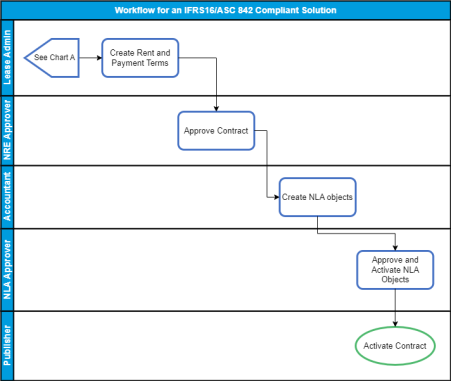
The following charts show a simplified workflow to demonstrate the main responsibilities of the roles in Nakisa Portfolio Management Suite. Chart A shows the workflow for when Nakisa Portfolio Management Suite is configured as a standard real estate solution. Chart B shows the workflow for when Nakisa Portfolio Management Suite is configured as an IFRS16/ASC 842 compliant solution. For more information on the modes of operation, see Modes of Operation.
Chart A:
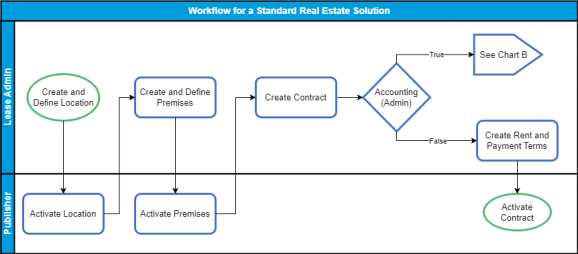
Chart B:

|
Nakisa Portfolio Management Suite 2025.R2 © 2025
|
Nakisa Inc. All rights reserved worldwide. |