Contract Versions
To work on future modifications that are not yet active, Nakisa Portfolio Management Suite allows you to create contract versions.
A contract version is a copy of the active contract at the time it is copied, which you can then modify without altering the active contract. When you are sure you want to keep the changes, the new version can be activated.
When creating a contract version, you can also create an activity. When a contract activity that is configured to require finalization is added, the contract will be read-only until the activity is completed or dismissed. Activities with no finalization required are automatically marked as completed and the contract can be immediately modified.
When a draft is created and is unfrozen, users can continue to add additional contract activities. To learn how to add a contract activity refer to Activity History.
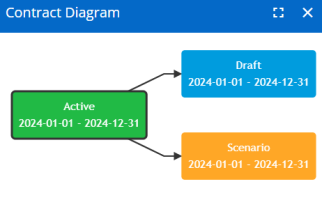
While you can only have one draft open at a time, you can create multiple scenarios to simulate different options. Note that scenarios can never be activated and will always have a status set to "Draft" and the scenario field set to "Yes".
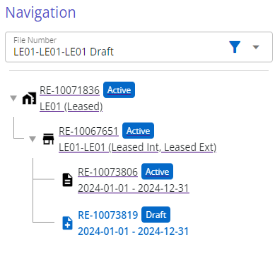
To navigate through different versions, use one of the following options:
- The navigation tree on the right side of the screen:
- The contract diagram:
To create a contract version:
- Open the desired contract.
- Ensure the contract is active. Contract versions cannot be made for contracts that are in the draft status.
- Click Create Contract Version.
- To create a scenario, ensure you have already created a draft contract. Then from the original active contract, click Create Contract Version.
- Select the appropriate Activity Type.
- If desired, enter a Code, Name, or Description.
- Click Save.
Note: If the activity type is subject to finalization, the contract version will be read-only until the activity is completed or dismissed by a user with the Approver role.
Users can also use contract versions to modify their rent table information and their vendors. Depending on your configured mode of operation (determined by the Accounting setting in the Admin section), there is a specific workflow that must be followed.
Note: Vendors cannot be dissociated completely in a contract version. Instead, users should set the ownership of the vendors to 0%.
For modifications made while the application is configured as an IFRS16/ASC 842 compliant solution:
- Create a contract version.
- The Update Contract Rate/IBR checkbox and the Modification Date fields appear on the contract identification page and can be modified, if required. Note that the Modification Date cannot be earlier than the posting date of the latest posted payment.
- Make the required changes in the Rent Table. Note that you cannot add payment terms with payment dates prior to the selected Modification Date.
- After the changes in the Rent Table have been made in the contract version, the lease administrator must approve the contract again.
- The relevant objects in Nakisa Lease Accounting Suite reopen as drafts which must be activated to reflect the changes made in the rent table. For more information on approving and activating objects in Nakisa Lease Accounting Suite, refer to the Nakisa Lease Accounting Suite User Guide.
Note: When you create a contract version to create a term past the contract end date, only the lease component in Nakisa Lease Accounting Suite is opened as a draft. You must approve the lease component and then return to Nakisa Portfolio Management Suite to refresh the lease component card in the Accounting form to open the activation group as a draft.
- Once all objects in Nakisa Lease Accounting Suite are active, you can activate your contract.
For modifications made while the application is operating as a standard real estate solution:
- Create a contract version.
- The Modification Date field appears on the contract identification page and can be modified, if required. Note that the Modification Date cannot be earlier than the posting date of the latest posted payment.
- Make the required changes in the Rent Table. Note that you cannot add payment terms with payment dates prior to the selected Modification Date.
- After changes are made in the rent table, the contract can be activated right away.
Nakisa Portfolio Management Suite can also automatically create contract versions when a contract transitions to a month-to-month contract. To enable automatic contract versions, the Automatic Month-to-Month Transition checkbox must be enabled at the contract level. Contract versions are continuously created for each subsequent month-to-month period so long as the checkbox remains enabled. All postings must be posted before the contract version can be created.
The application creates a new contract version one day after the original contract's end date, or a multiple of a month for existing month-to-month contracts. The contract version is created using default values defined in the admin section.
The creation and activation of the contract version is affected by the configured mode of operation:
- Streamlined: The application creates and merges lease component drafts in Nakisa Lease Accounting Suite. You must manually activate the activation group draft.
- Standard: The application creates the lease component and activation group drafts, but does not automatically merge the lease component draft. You must manually approve and activate the lease component and activation group.

|
Nakisa Portfolio Management Suite 2025.R2 © 2025
|
Nakisa Inc. All rights reserved worldwide. |