Documents
The documents page lists all documents that have been associated to an object, as well as those that are missing. Documents are listed by location.
Lease administrators can only view the documents for the objects they have access to. The list of documents can be filtered using the filter panel on the left.
For application objects that do not have associated documents, you can click on the row in the table and upload a document directly from the documents page.
Note that the documents library filters the documents to only show existing documents by default.
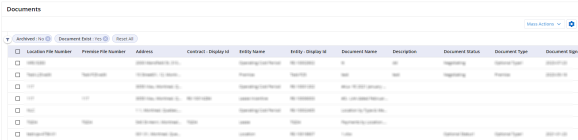
To use the documents page:
- Click Main Menu
 > Documents to access the documents page.
 - Click on a row to view details for a specific document. If the uploaded document is in PDF format, you can view the document in the application with the document viewer. To open the document viewer, click on the document in the table. The document viewer can be resized as required.
- Click Mass Actions > Download Documents to download all the documents listed in the table. The application downloads files into a .zip file, which can be accessed on the Documents Exports page.

|
Nakisa Portfolio Management Suite 2025.R2 © 2025
|
Nakisa Inc. All rights reserved worldwide. |