Initial Data
The initial data import allows users to create and maintain application entities within Nakisa Portfolio Management Suite, such as locations, premises, and contracts. Users can also upload their historical data as legacy terms using this template.
Users can choose to have their entities automatically activated by setting the "Status" column in the Excel to "Active". Note that when updating a pre-existing object, you cannot update the status through the initial data import.
Note: When importing a contract when the accounting setting is set to "On", users must first create an active master agreement, Nakisa Lease Accounting Suite contract, lease component, and activation group in Nakisa Lease Accounting Suite. Use the generated object IDs in the initial data template in the NfsLink sheet, and they will be linked to the created contract. Refer to the Nakisa Lease Accounting Suite User Guide for more information on creating and activating Nakisa Lease Accounting Suite objects.
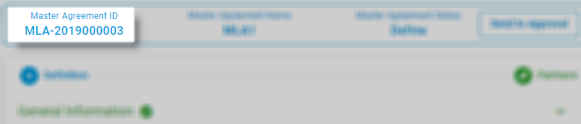
The ID can be found at the top of the screen in Nakisa Lease Accounting Suite:
To import initial data:
- Download the initial data template.
- Fill out the downloaded Excel file with your information. Red fields are mandatory. If there are objects such as "LocationArea" or "CriticalClause" that you do not want added in the import, you can delete the Excel sheets.
- If you are importing legacy terms:
- When the accounting setting is set to "On", enter your legacy terms in the "Terms", TermAmounts", and "TermVendor" sheets. These sheets are used for legacy terms only.
- When the accounting setting is set to "Off", set the "Legacy" field in the "TermAmounts" sheet to "True".
- If you are importing legacy terms:
- Upload the Excel file and begin the import process.
Note: Entering a non-valid ID will result in an error code stating that the external ID does not exist.

|
Nakisa Portfolio Management Suite 2024.R3 © 2024
|
Nakisa Inc. All rights reserved worldwide. |