Using the Interface
When you log in to Nakisa Capital Projects Suite or click on the Nakisa Capital Projects Suite logo, the application displays the following landing page, which provides a high-level view of your portfolio.
This section identifies the key areas of the interface.
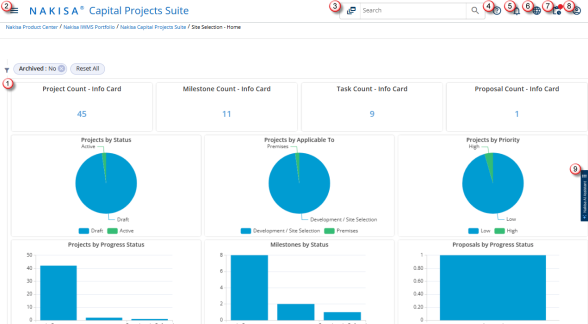
- The Landing Page shows charts related to the user's portfolio. By default, the landing page charts only show objects that are not archived
- The Application Menu allows users to quickly navigate through the application, view summary pages, and create dashboards.
- The Quick Search bar allows you to search for any object.
- The Help icon opens the Nakisa Capital Projects Suite User & Administrator Guide.
- The Notification Center indicates if you have a message or a pending alert.
- The Languages Menu allows you to change the application's language.
- The Action Center displays several tiles that allow you to see actionable statuses.
- The User Profile allows you to view user information, manage your preferences, and log out of Nakisa Capital Projects Suite.
-
Click the Nakisa AI Assistant to open the chat and ask any question about product features and how to use them. If required, you can move the Nakisa AI Assistant bar up or down, or to the other side of the screen.

|
Nakisa Capital Projects Suite 2025.R2 © 2025
|
Nakisa Inc. All rights reserved worldwide. |