Create a Proposal
To make changes to your team, first ensure you are in Edit mode. Once you begin to make updates to your area, a new proposal is created. You can create multiple proposals at the same time. When you go into Edit mode, the application loads the most recent proposal that you have worked on.
Once your Proposal has been approved, you can begin working on a new Proposal. The data you see when creating a new Proposal will include any changes that have been made in previous Proposals that have been approved (but not necessarily deployed).
Note: This only applies to Edit mode, to see changes reflected in Nakisa Org Chart the Proposal must be Deploy a Proposal.
You can make the following changes within your AOR:
To create a proposal:
- Above the org chart, click Edit.
- Start making your changes in the org chart.
- All of your changes are tracked in the Proposal Panel.
- By default, your proposal is named "My Proposal". Click on it to rename the proposal.
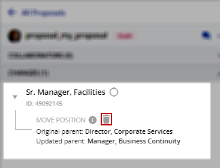
- If required, you can remove any changes you have made in your Proposal by clicking the delete icon next to the change.
- Navigate to all of your proposals or those that have been shared with you by clicking All Proposals at the top of the panel.
Note: You can discard your entire Proposal if you need by clicking the context menu
 > Discard Proposal.
 - If you need to create another proposal in parallel to the current one, click New Proposal above the org chart.

|
Nakisa Workforce Planning Portfolio 2025.R2 © 2025 |
Nakisa Inc. All rights reserved worldwide. |