Avatars
The Avatars section lets you upload and manage employee portraits should you want to include them in Nakisa Workforce Planning Portfolio products.
To Enable Portraits:
To enable portraits in your Nakisa Workforce Planning Portfolio product instance, switch the toggle on.
Enable User-Uploaded Employee Portraits
To enable user uploaded portraits in your Nakisa Workforce Planning Portfolioproduct instance, switch the toggle on.
Manage Stored Portraits
You can view how many portraits are stored in your system in the Stored Portraits section. From there, you can download them to your local system by clicking Download
You can also delete all of the stored portraits by clicking Delete All.
To Upload Portraits
You can upload a single or multiple portraits at one time.
- Click in the Browse for a File search bar to open your local repository.
- Select the image or images you want to upload. Be sure to follow the upload requirements:
- Single image:
- Only use .jpg files
- Uploaded photos will all be resized to 100 x 100 px
- File names must correspond to an employee number
- Multiple images
- Multiple images need to be uploaded in a .zip file
- Both .jpg and .png files can be uploaded in the .zip file
- Uploaded photos will all be resized to 100 x 100 px
- File names must correspond to an employee number
- Single image:
- Click Upload.
Any new images will automatically overwrite any existing images with the same file name.
User-Uploaded Employee Portraits
When User-Uploaded Employee Portraits are enabled, users can upload and edit their own portraits that will appear in the applications.
To Upload a Portrait:
To upload a portrait, navigate to the profile section in the Suite Header:
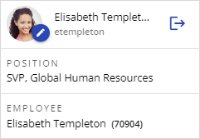
- Click the Edit Avatar icon .

- Click Browes for a file... and select an avatar to upload.
After you select an avatar to upload the adjust image menu opens.
- In the adjust image menu, you can select the area of the you want displayed as your avatar by using the Cropper. You can also zoom in or out of your image to change your cropping area. The image can also be rotated if needed.
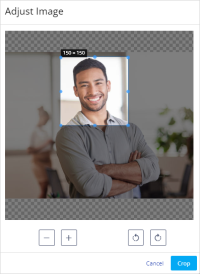
- When you are finished adjusting your image, click Crop.
- Click Save.
The avatar will be resized to 150x150 px if neccessary. The Avatar menu will display your avatar in the three different sizes it will appear in the applications. You can also reset your avatar if you chose. Resetting your avatar will revert it back to the default uploaded avatar.

|
Nakisa Workforce Planning Portfolio 2025.R3 © 2025 |
Nakisa Inc. All rights reserved worldwide. |