Proposal Panel
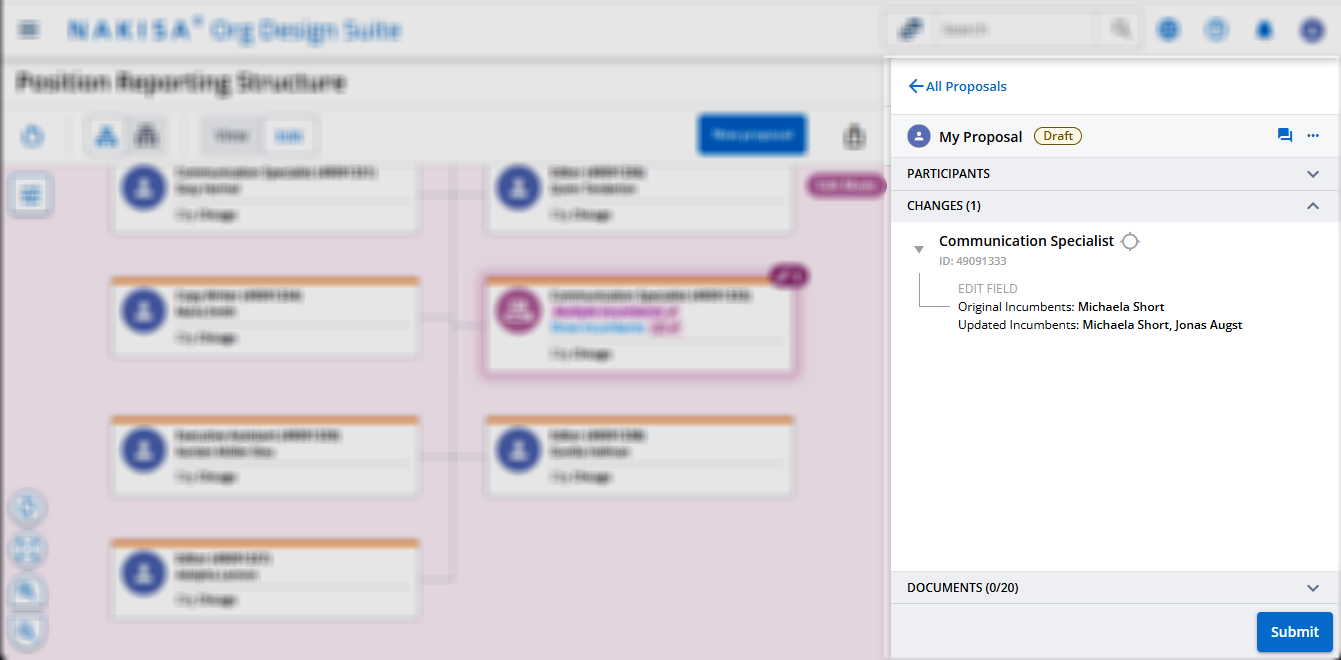
The Proposal Panel is located to the right of the org chart and has several functions. The Proposal Panel lets you track all the edits and changes you make, assign approvers, and deployers as well as share your Proposal with collaborators, approvers and deployers to discuss proposed changes.
By default, the Proposal Panel opens inside your proposal on the right, with the following sections:
| Section | Description | |
|---|---|---|
|
Participants |
The people you want to share your proposal with to receive feedback from. collaborators are selected by the Proposal creator by using the search bar and looking up the collaborators. You can also chose to give the collaborators edit or read only access to the Proposal by selecting their access using the dropdown menu. You can also discuss the Proposal using the Discussions. Collaborators will receive notifications when there are any changes made to the Proposal. |
|
|
The list of users that can approve your proposal after review. You will need to assign approvers to your Proposal who can then collaborate and review your Proposal before approving it. You can add approvers by using the search bar and adding them to your Proposal. Approvers can also discuss the Proposal in the Discussions. |
||
|
Deployers |
The list of users that implement the approved changed into their ERP and deploy the new org chart. |
|
|
Custom groups |
There may be additional groups of participants that have been configured. They appear in the Participants section. |
|
| Changes |
All changes made in a Create a Proposal are listed in the changes tab of the Proposal Panel. While all changes are tracked, if you make multiple changes to the same section of a node, for example, if you edit the Position name of a node four times, it will only appear as one change and list the latest change. |
|
|
Documents |
Use this section to manage documents associated with the proposal, either by uploading a file or adding a URL. To attach a document, click Attach Document, upload a file (up to 10MB) or enter a URL, add an optional document name, and then click Save. To view, download, or delete a document, click the context menu and select the required option. |
|
You can view any Proposals that have been shared with you as a Collaborator, Approver or Deployer in the All Proposals area. This area is also divided into sections which are collapsible. If you have not had a Proposal shared with you, the section will not appear in the All Proposals area.
This area lists the following:
| Section | Description |
|---|---|
| Your proposals | If you have active proposals, they will appear here. It will also list other proposals that you have created that have been approved or rejected. |
| Proposals shared with you |
The list of proposals that have been shared with you to review and provide feedback for. Proposals shared with you will note your role within the proposal (Approver, Deployer, Collaborator) as well as the status of the proposal. |
Filter Proposals
When you have created several proposals or have several proposals shared with you (as either a collaborator, approver or deployer), they will all appear in the Proposals Shared with You. When viewing all the shared proposals, click on Filter to open the filter panel.
From the filter panel, you can filter the proposals in the following ways:
- Dropdown menu
- Alphabetical (descending)
- Alphabetical (ascending)
- Newest on Top
- Oldest on Top
- State - To sort the Proposals by their current status.
- Draft
- Submitted
- Approved
- Rejected
- Deployed
- Closed
Discussions
While creating and collaborating on a proposed change, you can directly communicate with partifipants using the Discussions chat. Each Proposal will have its own discussion to ensure the proper collaborators are only discussing the appropriate Proposal.
The creator of the Proposal can initiate a new chat by clicking the Discussions icon  . If no collaborators have been selected when the chat is initiated, the discussion will prompt you to add collaborators. The chat can be used by the creator even if there are no other collaborators selected and can be used as a notepad. The Chat icon will also appear next to all the Proposals that appear in the All Proposals section. If there are new messages in the Chat, a red dot will appear next to the icon
  . You can hover over the icon to view how many new messages have been added.
The chat supports message editing to fix any errors, group replies, specific user mentions, as well as replying directly to a collaborator. When there is a new message the other collaborators will receive Notifications alerting them to the new message.
Discussions AI Agent (Beta)
If this beta option is enabled, an AI Agent can provide real-time support during discussions, helping you communicate and stay informed. To use it simply click the  icon and select one of the following options:
- Explain Conversation: Generates a summary of key points in the conversation from your perspective.
- Suggest Replies: Offers context-aware reply suggestions to help you communicate. Click on a suggestion to send the reply.
- Explain Changes: Summarizes the changes that were made to the Proposal.
Note: AI generated content may require review for accuracy and completeness before use.

|
Nakisa Workforce Planning Portfolio 2025.R3 © 2025 |
Nakisa Inc. All rights reserved worldwide. |