Invoices
This topic explains how to create and manage invoices in Nakisa Facilities Management Suite. Facility Managers and external vendors collaborate through the system to ensure that maintenance work is properly documented, reviewed, and paid for. After completing a work order, the vendor must create and submit an invoice.
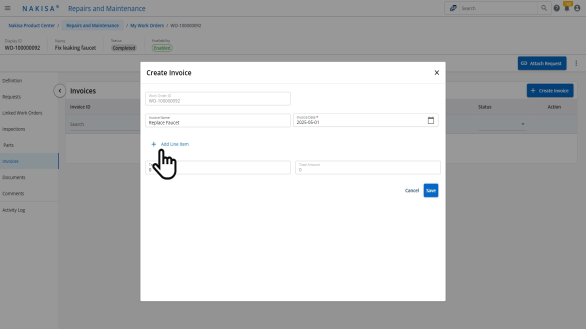
To create an invoice:
- From an existing work order, click Invoices in the left panel.
- Click Create Invoice.
- Enter the Invoice Name and Invoice Date.
- Add line items:
- Click Add Line Item.
- Enter the materials, time spent, and the applicable tax rate for accuracy.
- Upload any supporting images in the Images section.
- Optionally, add any relevant comments to the work performed.
- Click Save. The invoice is set to Draft by default.
When ready, you can update the invoice status to Submitted. The Facility Manager is notified that the invoice is ready for review. When the work order is completed, you can set the work order status to Completed to indicate that the task is finished and there is an invoice attached.
The Facility Manager can then review and manage the invoices for their premises.
To manage an invoice:
- From the My Premises page, select the relevant Premises.
- In the premises, click Invoices.
- Review the invoice list.
- For each invoice, use the context menu to view the full invoice and associated work order. Verify that the work performed and the invoiced amount align.
- Update the invoice status:
- Approved: Invoice is valid and ready for payment.
- Rejected: Invoice is invalid or work is unsatisfactory.
- Revision Requested: More information or corrections are needed.
- Once approved and communicated to the accounts department, update the status to Payment Processing.
- After the payment is completed, update the status to Paid.

|
Nakisa Facilities Management Suite 2025.R3 © 2025
|
Nakisa Inc. All rights reserved worldwide. |