Review and Export Scenario Changes
Once your scenario planning is complete, use the Changes Report and Advanced Export features to track, review, and share the changes made. These tools help you ensure transparency, alignment, and readiness for implementation.
View the Changes Report
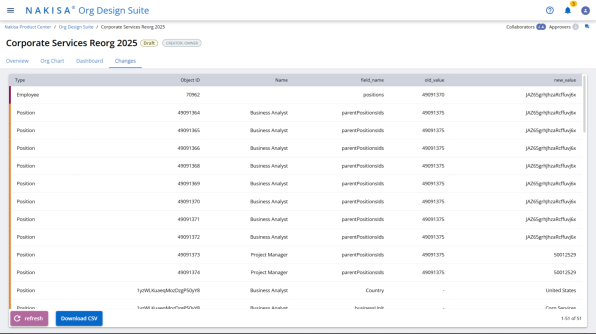
The Changes Report provides a complete list of every action performed during the scenario—this includes newly created, edited, moved, or deleted positions.
To access the report:
- Open your scenario.
- Navigate to the toolbar and click the Change Report icon.
The report displays:
- A summary of all object modifications.
- The type of change (Created, Updated, Deleted, Moved).
- The object name and object type (e.g., position).
- The old and new values for any edited fields.
This structured view helps you verify every change made and track ownership of modifications.
Download the Report
To export the report for offline use:
- Click the Download button.
- Select CSV format to export the change log.
The downloaded report is useful for audits, stakeholder reviews, or as a reference for implementation planning.
Use Advanced Export
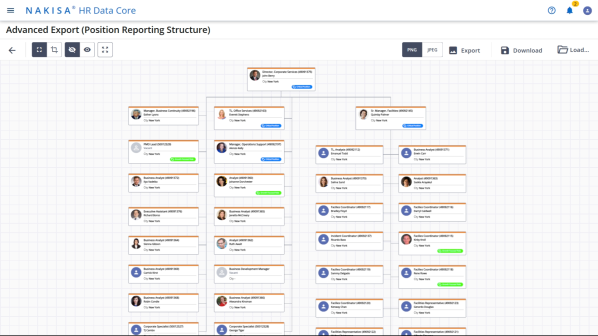
The Advanced Export feature allows you to generate a visual snapshot of your finalized org chart structure.
To access the export:
- Click the Export button from the scenario toolbar.
- You will be taken to the Advanced Export screen.
This screen displays a static image of the full org chart based on your latest scenario changes.
Show Change Indicators
By default, the exported chart hides change information.
To visualize the changes:
- Click the Change Info icon on the export page.
- All modified positions will now display visual indicators, showing:
- Created positions
- Updated details
- Deleted roles
- Moved nodes
These indicators provide an at-a-glance summary of all structural updates made during your scenario.
Best Practices
- Review the Change Report before sharing your scenario to ensure all changes are intentional and accurate.
- Use the Advanced Export to present a final version of your org chart in workshops or decision-making sessions.
- Enable Change Info in exports when transparency around edits and moves is required.
The Changes Report and Advanced Export features provide a clear, comprehensive view of your scenario’s evolution. Use them to communicate your design effectively and prepare for successful implementation.

|
Nakisa Workforce Planning Portfolio 2025.R3 © 2025 |
Nakisa Inc. All rights reserved worldwide. |