Edit Scenario Objects
You can edit positions and employee assignments within a scenario to reflect structural changes in your organization. This includes moving positions, creating new ones, updating attributes, cloning roles, assigning incumbents, and deleting obsolete positions.
Access the Scenario
- Log into the application.
- From the landing page, open the scenario you want to edit.
- Navigate to the Overview tab to review the scenario description and objectives.
- Click the Org Chart tab to begin editing.
The org chart displays the current structure, starting from the root node you selected when the scenario was created.
Move Multiple Positions
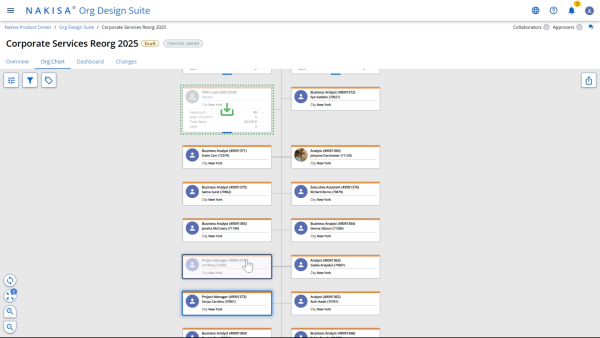
You can reposition one or more roles in the org chart using drag-and-drop.
- Hold the Control (Ctrl) key and click each position to select them individually,or click and drag your cursor to select a group of positions.
- Drag the selected positions to the desired supervisor.
- Release the mouse to drop the positions under the new reporting line.
Moved positions are marked with a 'Moved' indicator in the top right corner of the position box.
Create a New Position
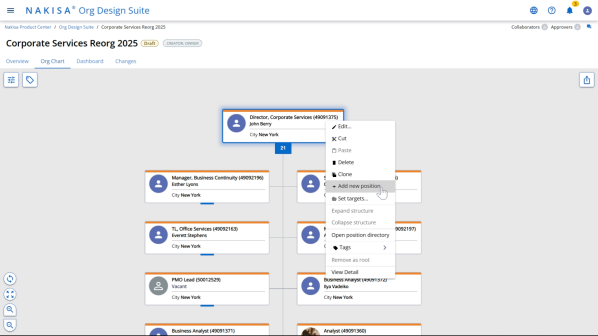
- Right-click an existing position.
- Select Add New Position from the context menu.
- A new position appears as a subordinate node.
Edit the New Position
- Right-click the new position and select Edit.
- In the Edit Position pop-up form:
- Title: Enter the new position’s title.
- Attributes: Add other required fields as needed (e.g., job family, location, level).
- Click Save.
The new role appears updated in the org chart.
Move Positions to the New Role
- Select the positions you want to relocate (e.g., Business Analyst roles).
- Drag and drop them under the newly created position.
All selected roles are moved and updated in the org chart.
Clone a Position
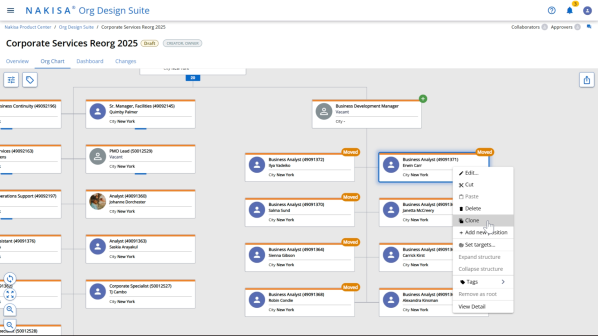
- Right-click the position you want to duplicate (e.g., a Business Analyst role).
- Select Clone.
- A duplicate of the role appears under the same manager.
The cloned role inherits attributes from the original but can be edited independently.
Assign an Incumbent
- Right-click the position you want to assign an employee to (e.g., Business Development Manager).
- Select Edit.
- In the Edit Position form, click Add Employee.
- In the Search Field, type the name of the employee.
- Select the employee from the results list.
The selected employee appears as the incumbent on the position.
Edit Employee Information
- Click the pencil icon next to the employee's name.
- In the Edit Employee form, update relevant details.
- Click Save to apply changes.
Updates to the employee are reflected immediately in the org chart.
Delete a Vacant Position
If a role will no longer be backfilled:
- Right-click the vacant position.
- Select Delete from the context menu.
- Confirm the deletion if prompted.
The position is permanently removed from the scenario.
Summary of Editing Actions
In this process, you can:
- Move individual or multiple positions
- Create and edit new roles
- Clone existing positions
- Assign or edit incumbents
- Delete roles that are no longer needed
These tools help simulate and plan structural changes with accuracy.

|
Nakisa Workforce Planning Portfolio 2025.R3 © 2025 |
Nakisa Inc. All rights reserved worldwide. |