Creating Lease Components
Once a contract has been approved, users can create lease components under it. Lease components can be created from scratch, or an existing one can be copied.
Note that if the header indicates that Migration Mode is ON, all objects created in or imported in to Nakisa Lease Accounting Suite are flagged as "Migrated".
Note: Click the context menu  and select Add to favorites for any lease component that you wish to favorite. These can be easily accessed in the Nakisa Product Center.
To create a new lease component:
- Perform one of the following actions:
- Open the Lease Component landing page and click
 in the landing page toolbar.
 - Open the contract under which the lease component will be created and click Context Menu
 > Create Lease Component.
 - Open the contract under which the lease component will be created, and click
 in the Lease Component section in the Navigation Panel: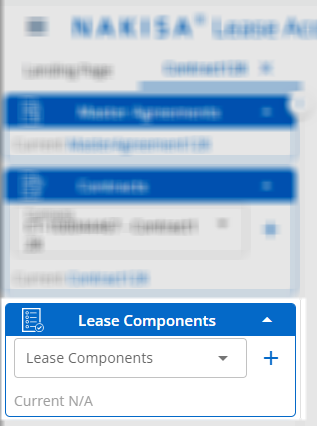
- Open the Lease Component landing page and click
- If required, select the Contract to which this lease component belongs.
- Enter a name for the lease component.
- Click Submit. Once the information is saved, the contract loads automatically.
To copy an existing lease component:
- Open the existing lease component that you would like to copy.
- Click the context menu > Copy.
- Enter the Lease Component Name.
- Click Include Terms and Conditions if you would like to also copy this information in the lease component.
- Click Copy.
See also:

|
Nakisa Lease Accounting Suite 2026.R1 © 2026
|
Nakisa Inc. All rights reserved worldwide. |