Inspections
The inspection feature in Nakisa Facilities Management allows you to create and manage facility or asset inspections.
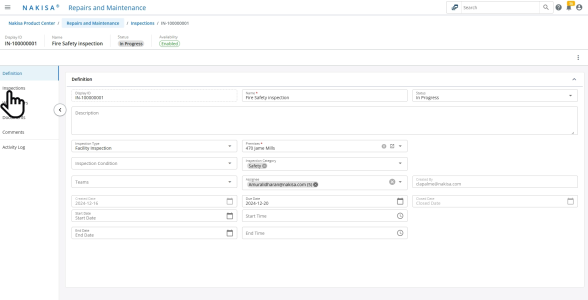
To create an inspection:
- From the Main Menu, click Inspections > Inspections.
- On the Inspections page, click Create.
- Choose to create an inspection either from scratch or from an existing template.
- Enter the required details:
- Inspection Name
- Premises: where the inspection will be conducted.
- Inspection Type:
- Facility Inspection
- Asset Inspection: If you select Asset Inspection, specify the asset to be inspected.
- Click Create.
Once the inspection is created, you can continue to add additional details.
To add details:
- In the newly created inspection, enter the following information:
- Inspection Category
- Assignee
- Due Date
- Status
- Select the Inspections tab to add inspection items:
- Click Add.
- Enter the following:
- Item Name
- Inspection Activity Type
- Click Create.
Once completed, the inspection is ready to be performed.
To perform and manage an inspection:
- For each inspection item, assign:
- Condition
- Priority
- Enter any relevant notes in the Observations field.
- Attach any relevant images.
- You can also attach a work order to the inspection by clicking Attach.
- Click Save once all details are entered.
- When the inspection is complete, you can update the inspection Status.

|
Nakisa Facilities Management 2026.R1 © 2026
|
Nakisa Inc. All rights reserved worldwide. |