Using the Interface
This section identifies the key elements of the application interface. Depending on your level of access, you may not have access to all the features described in this section.
The interface is made up of four persistent features: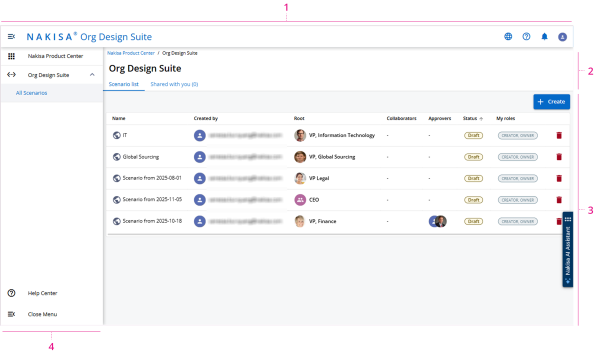
- Suite Header
- Page Header: The Page Header is situated just below the suite header and provides you with information about the page you are on as well as an action menu to perform specific tasks depending on what service and feature you are using. The page header, while persistent, is collapsible if desired. It can also contain breadcrumbs to help situate you by tracking the path to the current page. You can also use the breadcrumbs to go back to a previous page.
- Frame: The frame is the area in the application where your scenarios are displayed, including the option to create new scenarios. The tab Shared with you lists the scenarios where you have been added as either a collaborator, or an approver.
- Click the Nakisa AI Assistant to open the chat and ask any question about product features and how to use them. If required, you can move the Nakisa AI Assistant bar up or down, or to the other side of the screen.
- Main Menu: The Main Menu gives users first and second level access to their features. Each product has its own list of features in the Main Menu. When using the Main Menu, it lists the most popular features you use between all your products. When you are using a specific product, the menu only lists the features available based on the access you have. Note that clicking the main menu item "Nakisa Product Center" opens the Nakisa Product Center, which is is a global landing page that allows you to easily access resources and other Nakisa products.

|
Nakisa Strategic Org Design 2026.R1 © 2026 |
Nakisa Inc. All rights reserved worldwide. |