Approve and Complete a Scenario
After completing your scenario design and reviewing all proposed changes, you can send it for approval to ensure that key stakeholders review and validate your reorganization plan. Once approved, the scenario can be marked as completed and finalized for reporting or further implementation.
Scenarios move through different states as part of the approval process:
- Draft: The initial state when a scenario is created or edited.
- Approved: Indicates that all assigned approvers have reviewed and accepted the scenario.
- Completed: Marks the scenario as finalized and ready for closure.
- Recalled: Returns the scenario to Draft if further edits are required. Once recalled, the scenario must be reapproved before completion.
Send a Scenario for Approval
- Open the scenario you want to send for approval from the main Scenarios list.
- Review the scenario in the Org Chart tab and make any final changes.
- At the top of the page header, click Approvers.
- Expand the Approvers section, and search for and select one or more approvers. When multiple approvers are added, any one of them can approve the scenario.
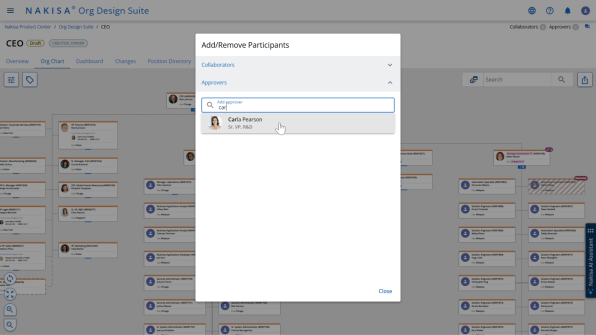
- Once approvers are assigned, they receive a notification indicating that a scenario is pending their review.
Review and Approve a Scenario
When you are assigned as an approver:
- You receive an email notification that a scenario requires your approval.
- After logging into the application, open the scenario by doing one of the following:
- Click the notification in the Notifications panel.
- Go to the Shared with You tab to view all scenarios shared for collaboration or approval.
- Once the scenario opens, review the content:
- In the Org Chart tab, analyze the proposed structural changes.
- In the Changes tab, review the list of all modifications made in the scenario.
- When you are ready to approve, return to the Org Chart tab and click Approve.
- The scenario status automatically updates to Approved.
Complete or Recall a Scenario
Once the scenario has been approved, as the scenario owner:
- You can see its updated Approved status on the main Scenarios page.
- If you need to make any changes, the scenario returns to Draft status, and must be reapproved.
- To finalize the work, open the scenario and click Set as Completed.
- The status changes to Completed, which is also reflected in the Scenarios list.
- If further changes are needed on a completed scenario, the scenario owner can click Recall.
- Recalling the scenario immediately returns it to Draft status.
- The scenario must be reapproved before it can be marked as completed again.

|
Nakisa Strategic Org Design 2026.R1 © 2026 |
Nakisa Inc. All rights reserved worldwide. |