Edit Scenario Objects
You can edit org unit, position, and employee assignments within a scenario to reflect structural changes in your organization. This includes moving positions, creating new ones, updating attributes, cloning roles, assigning incumbents, and deleting obsolete positions or org units.
Access the Scenario
- Log into the application.
- From the landing page, open the scenario you want to edit.
- Navigate to the Overview tab to review the scenario description and objectives.
- Click the Org Chart tab to begin editing.
The org chart displays the current structure, starting from the root node you selected when the scenario was created.
Note: The following sections describe how to edit the scenario from the Org Chart tab, but edit and mass edit options are also available from the Directory tabs of the scenario. Simply select the required records, click Mass Actions, and select the required action.
Move Multiple Nodes
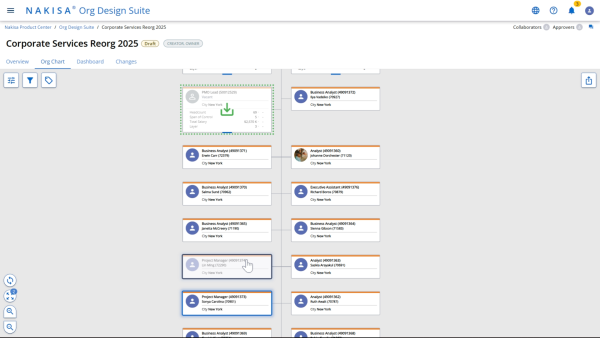
You can reposition one or more boxes in the org chart.
- Hold the Control (Ctrl) key and click each position to select them individually, or click and drag your cursor to select a group of boxes.
- Use one of the following options:
- Drag the selected boxes to the desired supervisor. Release the mouse to drop the boxes under the new reporting line.
- Right-click and select Cut. Navigate to the desired supervisor, right-click the node, and select Paste.
Moved positions are marked with a 'Moved' indicator in the top right corner of the org chart box.
Create a New Position or Org Unit
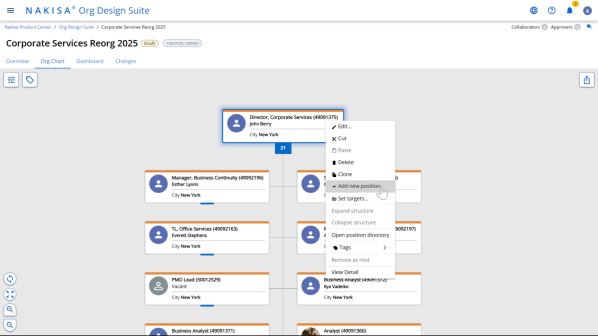
- Right-click an existing position or org unit.
- Select Add new position or Add new orgunit from the context menu.
- A new position or org unit appears as a subordinate node.
- Edit the the new object to add all relevant information.
Edit the Position or Org Unit
- Select one or multiple positions or org units, right-click, and select Edit.
- If you are editing a position:
- Enter the new title in Position Name.
- In the Incumbents section, add one or more employees, or edit the existing one.
- In the Location section, enter a valid location for the position.
- Add any additional information in the Position Information section.
- If you are editing an org unit:
- Enter the new title in either Position Name or Org Unit Name and Org Unit Abbreviations.
- In the Managers section, add one or more position, or edit the existing one.
- In the Location section, enter a valid location for the org unit.
- Add any additional information in the Org Unit Information section.
- Click Save.
Clone a Position or Org Unit
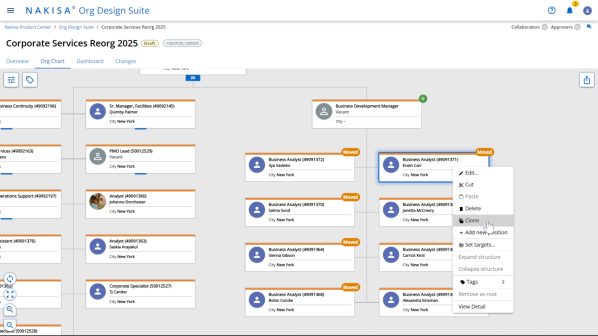
- Select one or multiple positions or org units you want to duplicate (e.g., a Business Analyst role).
- Right-click and select Clone.
- A duplicate of the box appears under the same manager.
The cloned box inherits attributes from the original but can be edited independently.
Created a Dotted Line Relationship
If dotted-line relationships are enabled in Nakisa Org Chart Admin, these secondary reporting relationships are represented in Position Reporting Structures as follows:
- The org chart box is outlined by a dotted-line under the secondary manager.
- Within the org chart box, you can see that the role has multiple managers (listed under Manager and Dotted Manager).
To create a dotted-line relationship to another manager:
- Select the child position, right-click, and select Manage Relations.
- In the Manage Relations pop-up, you can search and add a Dotted Manager or 2nd Dotted Manager.
- Click Save.
- Immediately in the org chart, you can see that the position now shows multiple managers. The dotted‑line manager is highlighted, indicating that this relationship was newly added. If you navigate to the dotted line manager, you can see that this child position is dotted line to them.
Delete a Vacant Position or Org Unit
If a role will no longer be back-filled:
- Right-click the vacant one position or org unit, or select multiple nodes.
- Select Delete from the context menu.
- Confirm the deletion if prompted.
The position or org unit is permanently removed from the scenario.

|
Nakisa Strategic Org Design 2026.R1 © 2026 |
Nakisa Inc. All rights reserved worldwide. |