Add Notes
Rather than explaining changes in emails, chats, or separate documents (and possibly losing that context), you can add notes directly to org chart nodes in a scenario.
An icon appears on the top-right corner of any nodes with notes:
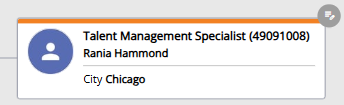
Anyone with access to the scenario (including work area owners) can view these notes. Hover over the note icon on the node to view the text or click on the icon to open the window.
Any scenario user with edit access can edit any of the notes or delete them. They can click on the note and making the changes as needed.
To add a note:
- In the scenario, navigate to the Org Chart tab.
- Right-click any org chart node, and select Set Note.
- Enter your note in plain text.
- Click Save.

|
Nakisa Strategic Org Design 2026.R1 © 2026 |
Nakisa Inc. All rights reserved worldwide. |