Org Chart Options
The chart options lets you customize the information that appears in the nodes in your org chart. To open the chart options, click the expand icon  to the left of the frame.
When the chart options panel opens, you can select which type of node view you want to see information for. Use the drop down menu to select one of the following view options. Note that the views available for you to select is dependent on which Org Chart Mode you have selected.
| Org Chart Mode | View | Description |
|---|---|---|
|
Standard Org Charts
|
Standard |
The standard view is the default view of an org chart and nodes. The standard view displays the org chart in the chart view and lets you choose which fields to include in the node, such as the portrait, location information, and employee status. Custom fields can also be added to include any specific filters you may require that are not included in the predefined list. Note: The ability to add a custom field is determined by your user access and is not available to all users. |
|
Employee Analytic |
The employee analytic view displays the org chart in the chart view and gives you all the same view options as the standard view, but you can also include employee analytic information in the nodes, such as headcount, span of control, and total salary. For more information, including definitions and calculations for the analytics, see the Analytics section. |
|
|
Position Analytic |
The position analytic view displays the org chart in the chart view and gives you all the same view options as the standard view, but you can also include position analytic information in the nodes, such as the position count, occupied position count, and managed position count. For more information, including definitions and calculations for the analytics, see the Analytics section. |
|
|
Succession View |
The succession view allows you to view the successors for all position nodes in the org chart, as well as their readiness. You can also use this view to assign successors to a position. To add a successor, simply right click on a node and click Edit Successors. Note that Succession Visualization and Succession Assignment must be enabled in the Admin section to use this org chart view and to assign successors. |
|
|
Summary Org Charts
|
Employee Summary |
The position summary displays the org chart and nodes in a condensed view and lets you choose from the information to display, such as employee, position, location, and company information. |
|
Position Summary |
The employee summary will only list the names of the employees that are direct reports to the node. You cannot select any other org chart options for this org chart option. |
|
|
Position Analytics Summary |
The Position Analytic Summary view displays all selected position analytics applicable to that node, as well as lists all the analytics of any direct reports to the parent node. You can use the Chart Options to select which fields or analytics you want to visualise in the node. |
|
|
Employee Analytics Summary |
The Employee Analytics Summary view displays all selected employee analytics applicable to that node, as well as lists all the analytics of any direct reports to the parent node. You can use the Chart Options to select which fields or analytics you want to visualize in the node. |
Each view lets you select which details you want to include in the nodes in your org chart. After selecting your node view, you can then select which information you want to display in the node. Note that org chart analytics values only apply to solid relationships (and do not reflect dotted relationships).
You can reset your filters by selecting the reset icon at the top of the filter panel. A filter sub category can be excluded from the search results by hovering over that sub category and clicking the exclude icon.
If you have a position that has multiple incumbents, you can use the org chart options to show the names of the incumbents by selecting the Expand employee names option.
If you are using an Org Unit reporting structure, you can also select between Org Unit and Position nodes to select what information you want to display in each node type.
To select the node type:
- Open the Org Chart Options.
- Click Position or Org Unit to select which node type you want.
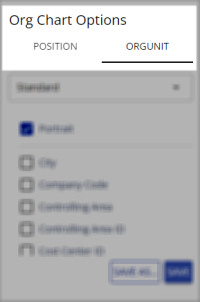
- Select the information to include in the nodes.
- Click Save as.

|
Nakisa Workforce Planning Portfolio 2025.R3 © 2025 |
Nakisa Inc. All rights reserved worldwide. |