Move a Position
If you need to reorganize your team structure or if one or several position nodes need to transfer to a new parent, Nakisa Operational Org Design lets you move a position node within your team or to another team.
Note: You can only move a node within your own AOR.
There are two ways to move a node to a new team:
- Drag and drop
- Cut and paste
To perform a drag and drop, select the node you want to move and drag it to its new team/area. When you drag a node over a new manager, it will highlight green. Then you will drop it on the parent node of the team you want to move it to.
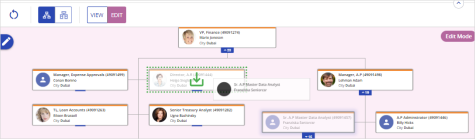
If you move a node that has children nodes, all the nodes will move with the parent.
To cut and paste a position to move it:
- Select the node you want to move.
- Right-click in the node and select Cut.
- Right click on the parent node you want move the node under and select Paste.
Once you paste the node, the org chart will expand and the node will move and re-settle under its new parent and be highlighted and have a Moved tag on it. The Proposal Panel includes information about the original and updated parent position.
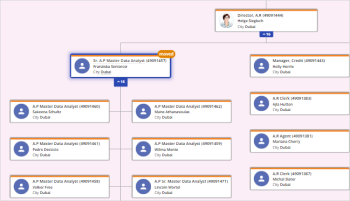 .
.
You can also mass move nodes if you require. To perform a mass move, hold CTRL and select the nodes you want to move. Then perform a drag and drop or a cut and paste move to move the nodes. You can move up to 50 nodes at one time.
If you are trying to move some nodes that you don't have the authority to move, a dialogue box will open asking if you want the conflicting nodes to be removed from your selection while the rest will be moved.
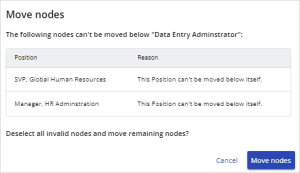
While you have multiple nodes selected you cannot edit any node information.

|
Nakisa Workforce Planning Portfolio 2025.R3 © 2025 |
Nakisa Inc. All rights reserved worldwide. |