View an Org Chart
Organizational charts (org charts) graphically show the hierarchical authority, roles and responsibilities, and relationships in an organization. The org chart is made up of nodes that contain quick and customizable information about the position, employee or Org Unit you are viewing. The information is dependent on which type of reporting structure you use and the user role access you have.
To view the org chart, click  Org Chart in the main menu. If you have a primary and secondary reporting structure configured, select Position Reporting Structure or Org Unit Reporting Structure. The org chart displays all employees and information you are allowed to see based on your user role access.
By default, the org chart is displayed collapsed, with only the high level parent nodes displayed. To see how many child nodes a parent has, hover over the node and the number appears below the node, in a blue box.
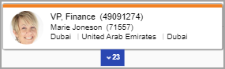
You can expand and collapse the child nodes by clicking the child node number box. When you expand a group of child nodes, the org chart centers on that expanded group.
You can identify orphaned nodes and will receive a notification indicating the node is not present under the organization's root.
For more information about using nodes, see the Context Menu.
Multiple Incumbents
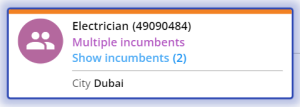
Position nodes can have multiple incumbents. These nodes will be be identifyable as they will say Multiple Incumbents. You will also have the ability to display or hide the incumbets on the node. Click Show Incumbents or Hide Incumbents to list the names of the employes that are assigned to the position.
Dotted Relationships
Nakisa Org Chart allows to view the different relationships your organization may have. Along with solid line reporting, Nakisa Org Chart also shows dotted relationships, which represent a secondary reporting relationship. It means an employee formally reports to one manager, but also works closely with or is accountable to another manager for part of their role.
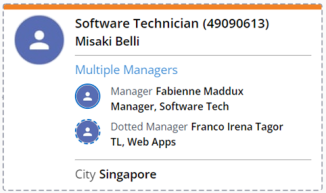
Dotted relationships are represented in the org chart by dotted lines connecting the parent and child nodes. The child node will also have a dotted boarder. Note that second dotted line relationships are indicated by a dash-dot line.
Inside the node, you will be able to see the list of managers the child has and what type of relationship they have. A dotted manager will have an avatar that has a dotted boarder to signify the relationship type.
If you would like to simplify your view and focus on direct reporting relationships, you have two options:
- Use Org Chart Options to remove dotted line relationships from the org chart, displaying only the primary reporting structure.
- Use Display Options to hide dotted line reporting boxes, but keep the dotted line information within the primary reporting org chart box.
Manager Inheritance
In many cases, the manager of the parent org unit is responsible for the child unit. If this information is not explicitly managed in the source system, it will appear throughout the application as "No manager", including in the details panel. Org Unit Reporting Structure org charts can be configured to have vacant org units (i.e., org units without a chief position, or org units without an incumbent in the chief position) inherit position managers from a parent (or higher) org unit.
To display the manager inherited from the parent unit, administrators can enable the Manager Inheritance option in the Admin settings. When activated, the child organization unit dynamically inherits the manager from its parent, allowing users to visualize the full management structure directly in the Org Unit Report Structure org chart.
Org units that previously had no manager now show the inherited manager name and icon from the parent unit.
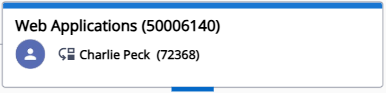
Hover over the inheritance icon  next to the manager’s name to view the source of the data or relationship. The same icon also appears in the Details Panel, indicating that the manager was inherited.
Temporary Assignments
Many organizations need to track temporary employees who fill positions for a limited time—such as when a regular occupant is on leave or assigned to another role. Nakisa Org Chart enables you to visualize these temporary assignments directly in the org chart when the corresponding data is available from your HR system.
Administrators can enable Temporary Assignments to display up to five employees who are temporarily assigned to a position or working as contingents.
When you zoom in on a position with a temporary occupant in either Position Reporting Structures or Org Unit Reporting Structures, the position box displays additional details about the temporary assignment, including the employee name and the period of assignment.
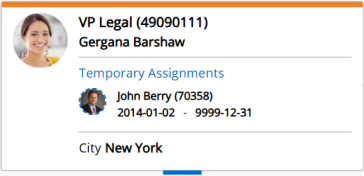
In Position Reporting Structures, you can right-click on the node, select Go to, and then one of the temporary assignments. The org chart is then reloaded with that position, and you can navigate up to see where the position is in the organization structure.
You can also use effective date drop-down at the top of the page to view how the structure looked before or after the temporary assignment period. When you select a date before the assignment began, the temporary employee no longer appears in the box.

|
|
Nakisa Inc. All rights reserved worldwide. |